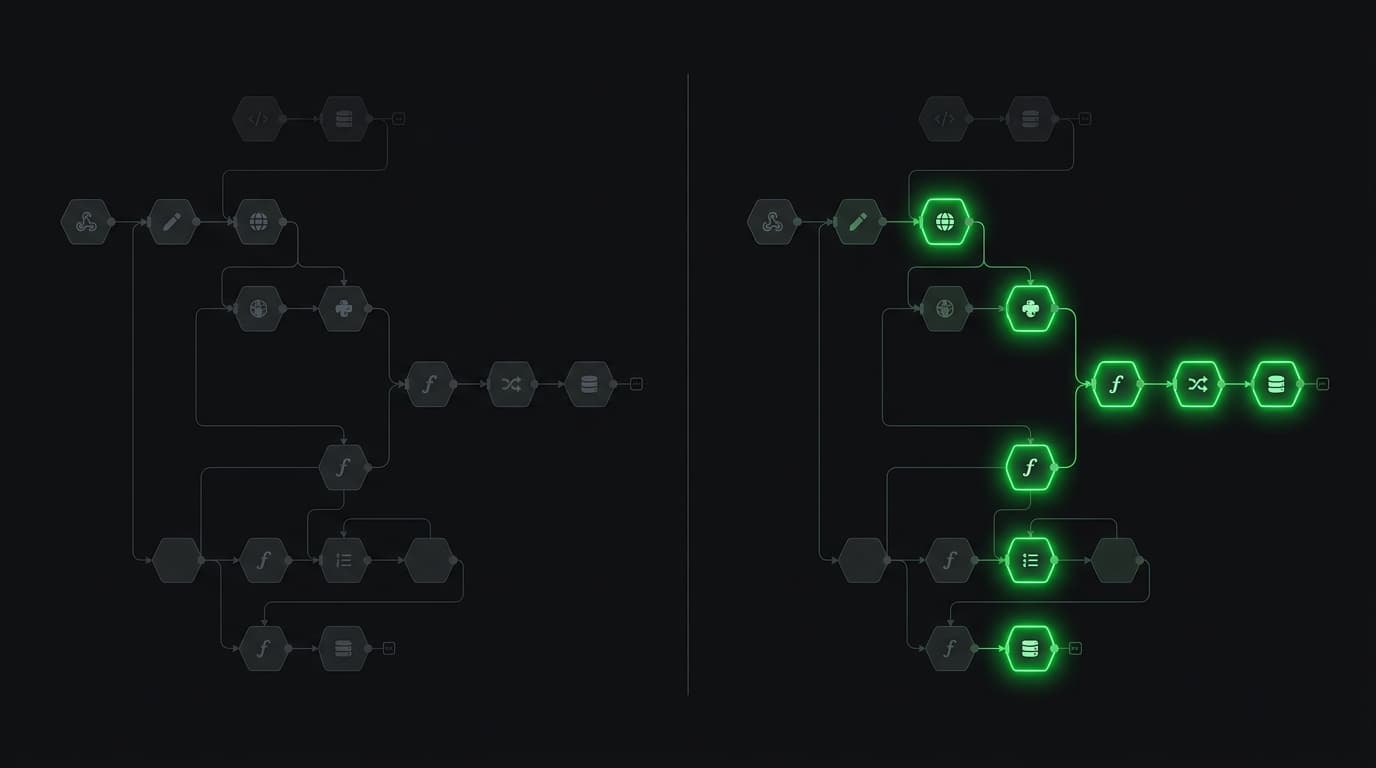
You've been editing a workflow for an hour. Something broke. You're not sure what changed. You click undo a few times, but you've already saved twice and can't remember which node you modified.
Sound familiar? This is why n8n added visual diff.
As of March 2026, n8n lets you pick any two saved versions of a workflow and compare them side by side on the canvas. Changed nodes are highlighted. You can see exactly what's different without reading raw JSON or guessing.
This guide covers both of n8n's comparison features – the new version history diff (Cloud Pro+) and the source control diff for environments (Enterprise) – so you know which one applies to your setup and how to use it.
Version history diff (Cloud Pro and above)
This is the feature most people want. It shipped on March 16, 2026 and lets you compare any two saved versions of the same workflow.
How to access it
- Open the workflow you want to compare
- Click the history icon in the header bar
- The version history panel opens, showing all saved versions
- Select two versions you want to compare
- Click Compare changes
The canvas renders both versions side by side. Changed nodes are highlighted visually, and each version shows a change count badge so you can spot significant edits at a glance.
What it shows
- Side-by-side canvas rendering – both versions displayed as visual workflow diagrams
- Changed nodes highlighted – modified nodes are visually marked so you can spot them instantly
- Change count badges – each version shows how many changes it contains
Version retention by plan
Not every plan keeps the same amount of history:
| Plan | History retention | Named versions |
|---|---|---|
| Community (self-hosted) | Last 24 hours | No |
| Cloud Pro / Self-Hosted Business | Last 5 days | Yes |
| Enterprise (Cloud and Self-Hosted) | Unlimited | Yes |
Named versions let you give a meaningful name and description to any version. They're protected from automatic pruning, so they stick around indefinitely. Available on Pro plans and above.
When versions are created
n8n creates a new version every time you save the workflow. Important detail: workflow settings changes don't create a new version – only node additions, deletions, and parameter changes are tracked.
This means if you change a workflow's settings (like the timezone or error handling behavior) without touching any nodes, there won't be a new version to compare against. For a deeper look at what to check in your workflows beyond version tracking, see our n8n security audit checklist.
Source control diffs (Enterprise)
If you're running n8n with source control and environments – pushing and pulling workflows between instances via Git – there's a separate, more detailed diff system.
This one has been around since August 2025 and was improved in September 2025 with per-line highlighting and independent scrolling.
How to access it
- Go to Source Control in the n8n sidebar
- Click Push or Pull to start a sync
- In the "Commit and push changes" modal, you'll see the diff view
- Filter by status: new, modified, or deleted
- Click into any workflow to see the detailed comparison
What it shows
This diff is more granular than the version history one:
- Added, changed, and deleted nodes with color-coded highlights
- Side-by-side parameter diffs for each node's settings
- Workflow settings changes (unlike version history, source control tracks these)
- Per-line highlighting in Code nodes and Sticky Notes – not just block-level diffs
- Toggleable viewport sync – scroll both sides together or independently
- Change count summary across all workflows being pushed/pulled
Requirements
Source control diffs require the environments feature, which is Enterprise-only:
- Cloud Enterprise
- Self-Hosted Enterprise (with license key)
- Self-Hosted Business plan
You also need a connected Git repository. The n8n docs have a setup guide.
Which one should you use?
| Scenario | Use |
|---|---|
| "What changed in this workflow since yesterday?" | Version history diff |
| "What's different between staging and production?" | Source control diff |
| "I broke something and need to see what I changed" | Version history diff |
| "I need to review changes before deploying" | Source control diff |
| Community Edition, need diffs | Third-party tools (see below) |
Comparing Flow-generated workflows
If you use WotAI Flow to generate n8n workflows, the visual diff becomes especially useful for comparing Flow's output against your manual edits.
Here's the workflow:
- Generate a workflow in Flow
- Import it into n8n
- Make your customizations (credentials, specific parameters, additional nodes)
- Save after each round of changes
Now you can use version history to see exactly what you changed from Flow's baseline. This is helpful when you want to regenerate a workflow in Flow (maybe with updated requirements) and need to know what manual changes you'll need to reapply.
Third-party alternatives for Community Edition
If you're on the Community Edition and need diff capabilities, two free tools can help:
n8n Workflow Diff Tool by LLMx – a free web tool where you paste or upload two workflow JSONs. It renders a color-coded node graph: green for added, red for removed, yellow for modified, blue for renamed.
n8n-workflows-comparator – a CLI tool that generates detailed diff reports from workflow JSON files. Good for CI/CD pipelines or automated comparisons.
Neither is as polished as n8n's built-in diffs, but they get the job done when you don't have access to the paid features. If you're debugging webhook issues alongside version diffs, our webhook debugging cheat sheet covers the most common problems.
Tips for getting the most out of visual diff
Save frequently with intention. Every save creates a version. If you save after each logical change (added a new branch, rewired the error handling, updated the credentials), your version history becomes a useful changelog instead of noise.
Use named versions for milestones. Before a major refactor, name the current version something like "Working – pre-refactor." If things go wrong, you can compare against a clearly labeled baseline instead of guessing which timestamp was the good one.
Export before destructive changes. Version history is stored in n8n's database, not in Git (unless you're using source control). If you delete a workflow, the history goes with it. Export the JSON before deleting anything you might want to reference later. If you're self-hosting, make sure your hosting setup includes regular database backups.
Combine with source control for team workflows. Version history tracks individual saves. Source control tracks deployments between environments. Use both: version history for your own development, source control for team review and deployment.
FAQ
How do I access n8n's visual diff?
Open a workflow, click the history icon in the header, select two versions, and click "Compare changes." The canvas renders both versions side by side with changed nodes highlighted. This requires Cloud Pro or above.
Which n8n plans support workflow version history?
All plans have some version history. Community Edition retains versions for 24 hours. Cloud Pro and Self-Hosted Business keep five days plus named versions. Enterprise plans keep unlimited history with named versions.
What's the difference between version history diff and source control diff?
Version history diff compares two saved versions of the same workflow on the same instance. Source control diff compares your local instance against a remote Git branch – useful for reviewing changes before deploying between staging and production environments.
Does n8n track workflow settings changes in version history?
No. Workflow settings changes (timezone, error handling behavior, etc.) don't create a new version. Only node additions, deletions, and parameter changes are tracked. Source control diffs do track settings changes.
Can I use visual diff on self-hosted n8n Community Edition?
The built-in visual diff requires Cloud Pro or above. On Community Edition, you get 24 hours of version history but no visual comparison. Free alternatives include the LLMx Workflow Diff Tool (web-based) and n8n-workflows-comparator (CLI).
How do I compare a Flow-generated workflow against my manual edits?
Import the Flow-generated workflow into n8n, make your customizations, and save after each round of changes. Then use version history to compare any two versions – you'll see exactly what you changed from Flow's baseline output.
What are named versions in n8n?
Named versions let you give a meaningful name and description to any saved version of a workflow. They're available on Pro plans and above. Named versions are protected from automatic pruning, so they persist indefinitely – useful for marking milestones like "pre-refactor" or "v2 launch."
Can I restore a previous workflow version after comparing?
Yes. From the version history panel, select any version and click restore. The current workflow will be replaced with that version, and a new version is created automatically so you can always undo the restore.
Stop guessing. Score your first workflow.
Score one workflow in about five minutes. Nine questions, a grade, and the specific gap holding it back - no call required.
Related Posts
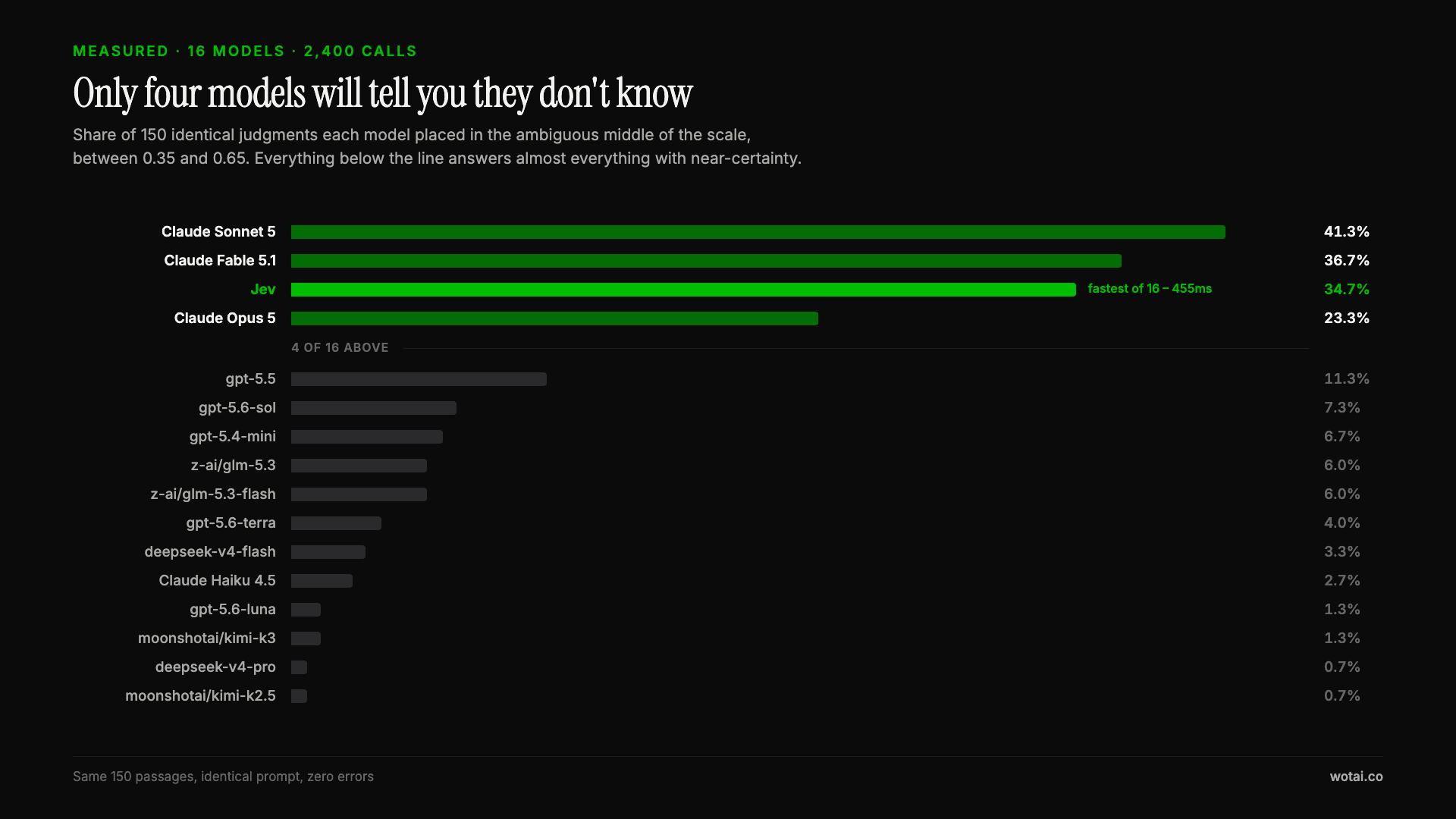
Jev is the only sub-second model that will tell you it doesn't know
Sixteen models on the same 150 passages, plus two more tasks. Only four of the sixteen will say they are unsure, and Jev is the only one of those four that answers in under a second.
AGENTS.md vs CLAUDE.md: which file your agent actually reads
Both files in one repo, measured: load order, token cost, and which one wins when they disagree. Every guide explains the difference; this one runs the test.
Compound engineering vs Superpowers: what each one installs
Both Claude Code plugins installed and measured: 14 skills against 33, one SessionStart hook against none, and the six skills that collide when you run both.